
When we built the Natural Pyrite UAE website, one of the first technical challenges we tackled was figuring out how to add schema markup in WordPress. We wanted our pyrite products, bracelets, decorative frames, raw stones, to show up in Google with rich results: prices, ratings, availability. Without schema, our product pages were just plain blue links competing against every other result. Schema markup changed that.
The process isn’t as complicated as it sounds, but you do face a real decision early on: use a plugin or add the code manually. Both approaches work. Both have trade-offs. Plugins make things faster and more beginner-friendly, while manual JSON-LD gives you precise control over every structured data property on your pages. The right choice depends on your comfort level with code, your site’s complexity, and how much flexibility you actually need.
This guide walks you through both methods, step by step. We’ll cover how to add schema using popular WordPress plugins like Rank Math and Yoast, then show you how to do it manually with JSON-LD, the format Google recommends. By the end, you’ll know exactly which approach fits your site, how to implement it correctly, and how to validate your markup so it actually works in search results. No guesswork, no unnecessary complexity, just the practical steps to get structured data live on your WordPress site.
What schema markup does and what it affects
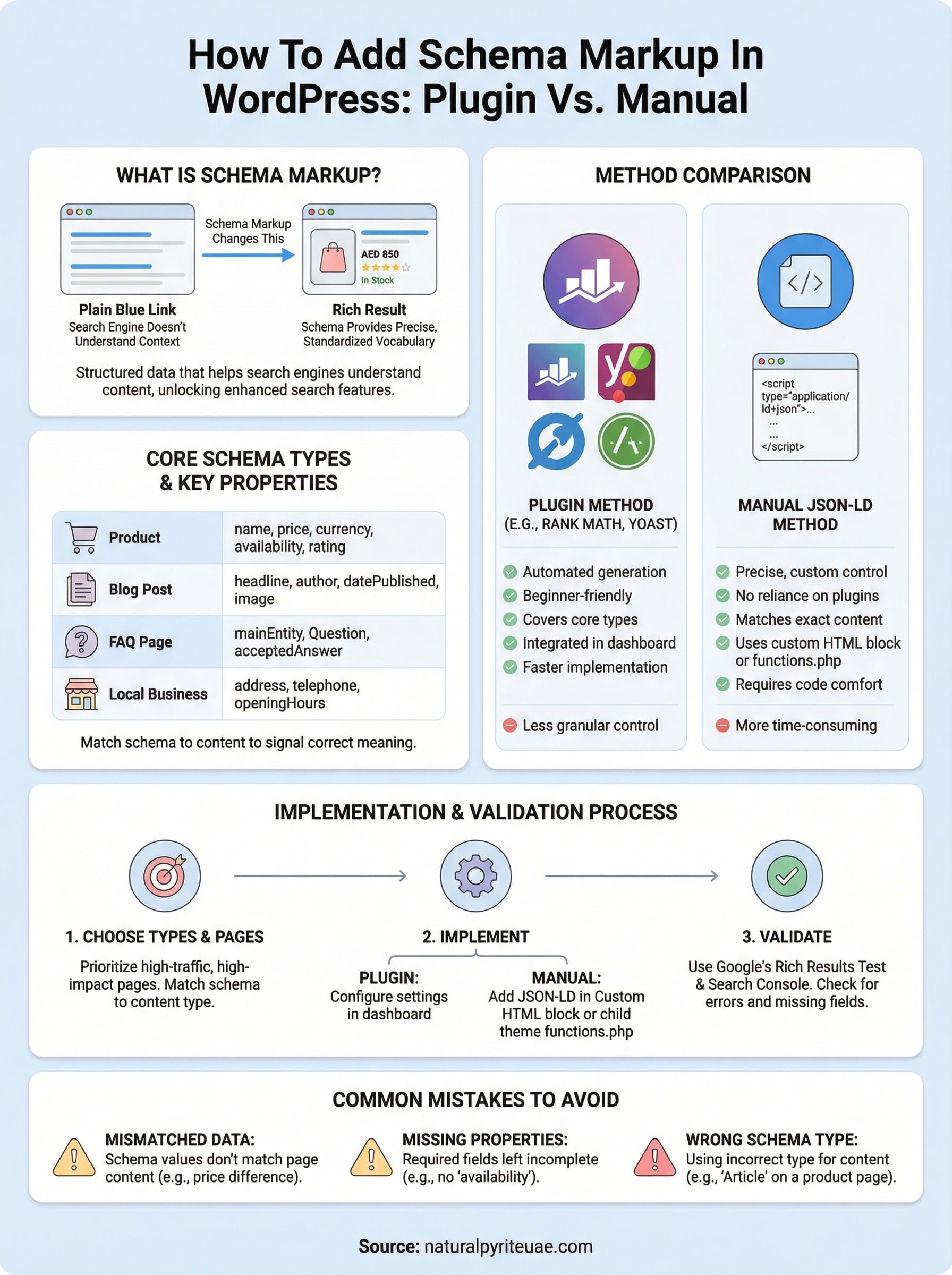
Schema markup is structured data you add to your HTML that tells search engines exactly what your content means, not just what it says. Without it, Google reads your page like a stranger deciphering a foreign language: it can guess the meaning, but it often gets details wrong. Schema gives search engines a precise, standardized vocabulary to understand your content type, whether that’s a product, an article, an FAQ, or a local business. When you learn how to add schema markup in WordPress, you’re giving Google a labeled map of your page instead of making it figure out the terrain on its own.
Schema markup doesn’t change what visitors see on your page; it changes what search engines understand about your page.
How search engines read schema
Search engines use crawlers to index your pages, but crawlers interpret text in context. A number like "AED 850" on your page could mean a price, a phone number, or a reference code. Schema eliminates that ambiguity by wrapping data in a standardized format from Schema.org, the shared vocabulary maintained by Google, Microsoft, Yahoo, and Yandex. When you add a Product schema block with a defined price, currency, and availability property, Google knows exactly what each value means and how to use it in search features.
This matters because Google’s rich result systems depend on structured data to generate enhanced search features. A page without schema can still rank, but it can’t qualify for rich results like product panels, star ratings, or FAQ dropdowns unless the structured data is present and valid.
What rich results look like in practice
Rich results are the enhanced search listings that appear when your schema is valid and matches your page content. For an e-commerce product page, this means a search result that shows your price, stock status, and star rating directly in the results page, before anyone clicks through. For an article, it might trigger a top stories carousel or a thumbnail image next to your listing.
These visual upgrades drive real click-through traffic. Google’s own documentation confirms that rich results can significantly improve visibility in search. On our pyrite product pages, adding Product schema made our listings look more complete and authoritative compared to plain text competitors sitting in the same results.
Which parts of your site schema affects
Schema markup affects three distinct areas: search appearance, click-through rate, and crawl understanding. On the search appearance side, valid schema unlocks rich result eligibility for specific pages. On the click-through side, richer listings attract more attention, which can improve traffic even when your ranking position stays the same. On the crawl understanding side, schema helps Google correctly categorize your content, which builds topical authority over time.
Not every page on your site needs schema. Product pages, blog posts, FAQ sections, and local business information are the highest-impact targets. Pages like your privacy policy or cart page offer little benefit from structured data and don’t require it at all, so focus your effort where the potential for rich results is real.
Before you start: pick schema types and pages
Before you touch any plugin or write a single line of JSON-LD, you need to make two decisions: which schema types apply to your content and which pages to prioritize first. Jumping straight into implementation without this clarity wastes time and can produce schema that doesn’t match what’s actually on the page, which Google will ignore or flag as misleading in your rich result reports.
Match schema types to your content
Schema.org lists hundreds of schema types, but most WordPress sites only need five to ten of them. The key is matching the schema type to the actual content the page displays. A product page gets Product schema. A blog post gets Article or BlogPosting schema. A business contact page gets LocalBusiness schema. If you apply the wrong type, you’re not just wasting effort; you’re actively signaling a mismatch between your markup and your content.
Using a schema type that doesn’t reflect what’s on the page is one of the fastest ways to lose rich result eligibility, even if the code itself is technically valid.
Use this table to map your page type to the correct schema before you start learning how to add schema markup in WordPress:
| Page Type | Schema Type | Key Properties to Include |
|---|---|---|
| Product page | Product |
name, price, currency, availability, rating |
| Blog post | BlogPosting |
headline, author, datePublished, image |
| FAQ page | FAQPage |
mainEntity, Question, acceptedAnswer |
| Homepage or brand | Organization |
name, url, logo, contactPoint |
| Local business | LocalBusiness |
address, telephone, openingHours |
Prioritize high-impact pages first
You don’t need to add schema to every page at once. Start with the pages that generate the most traffic or have the clearest path to a rich result, such as your top product pages, your best-ranking blog posts, and any page already sitting on page one without an enhanced listing.
Targeting strategically gives you faster, measurable wins without spreading your effort across dozens of pages simultaneously. Once you confirm your first batch of schema validates correctly and begins appearing in Google Search Console’s rich result reports, you can expand to secondary pages in a systematic, controlled way.
Plugin method: add schema with SEO plugins
The plugin method is the most common approach when learning how to add schema markup in WordPress because it removes the need to write or maintain code directly. SEO plugins read your page content and generate schema automatically based on the settings you configure. Rank Math and Yoast SEO are the two most widely used options, and both cover the core schema types you need for product pages, blog posts, and organizational information.
Set up Rank Math schema
Rank Math gives you direct control over schema without requiring manual code. Once you install and activate it, navigate to Rank Math > Titles & Meta in your WordPress dashboard. Open the content type you want to configure, for example "Posts" or "Products," and look for the Schema Type dropdown. Select the schema type that matches your content: Article for blog posts, Product for WooCommerce pages, FAQPage for dedicated FAQ content.
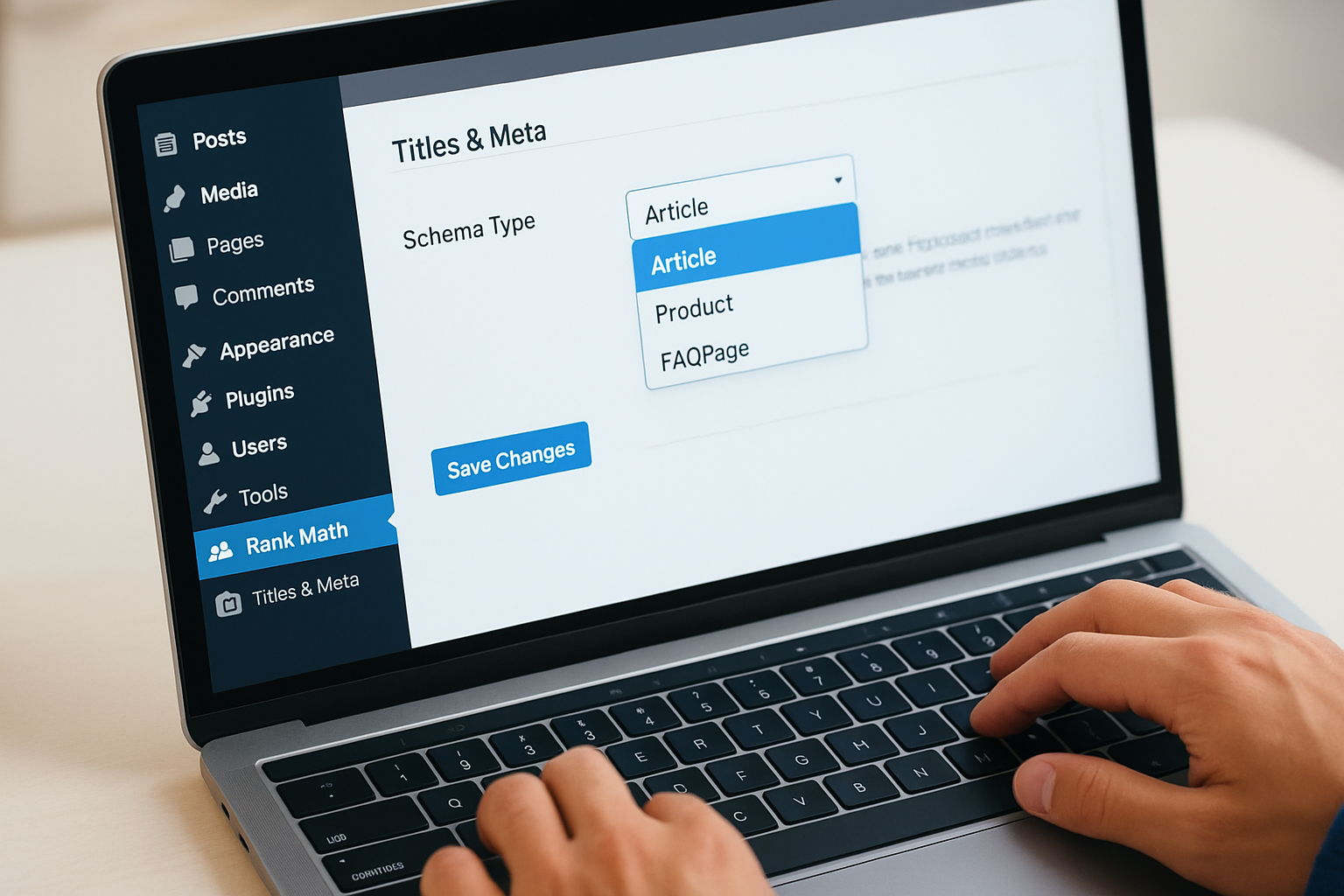
Rank Math also includes a Schema Generator inside each individual post editor, which lets you override the global setting and add multiple schema types to a single page.
To use it, open any post, scroll down in the Rank Math sidebar panel, and click Schema. You’ll see a list of schema templates. Select your type, fill in the fields, and publish. Rank Math writes the JSON-LD to the page head automatically, with no extra steps required.
Configure schema in Yoast SEO
Yoast SEO generates WebPage, Article, and Organization or Person schema automatically once you complete the Site Representation setup under Yoast SEO > Settings > Site Basics. This tells Yoast whether your site represents a business or an individual, which it uses to build your sitewide schema graph that connects all your pages together into a structured entity Google can understand.
For product pages using WooCommerce, install the Yoast WooCommerce SEO add-on, which extends Yoast’s schema output to include proper Product markup with price, availability, and review properties pulled automatically from your existing product data.
Manual method: add JSON-LD safely in WordPress
The manual method gives you complete control over your structured data without relying on any plugin’s interpretation of your content. When you understand how to add schema markup in WordPress by hand, you can write precise, custom JSON-LD blocks that match your exact page content, include properties that plugins sometimes skip, and apply schema to pages or templates that automated tools handle inconsistently. This approach requires basic comfort with code, but the process itself is straightforward.
JSON-LD is the format Google recommends for structured data because it sits separately from your HTML content and doesn’t require you to edit existing page elements.
Write your JSON-LD block
Your JSON-LD block is a script tag with a specific type attribute that contains your structured data as a JSON object. The block goes inside your page’s <head> section. Here is a working Product schema example you can adapt directly:
<script type="application/ld+json">
{
  "@context": "https://schema.org",
  "@type": "Product",
  "name": "Money Magnet Pyrite Bracelet",
  "description": "Handcrafted natural pyrite bracelet for daily wear.",
  "brand": {
    "@type": "Brand",
    "name": "Natural Pyrite UAE"
  },
  "offers": {
    "@type": "Offer",
    "price": "850",
    "priceCurrency": "AED",
    "availability": "https://schema.org/InStock"
  }
}
</script>
Replace the name, description, price, and availability values with your actual product data. Every property you include should accurately reflect what appears on the visible page, not what you wish the page said.
Add the code to WordPress without a plugin
The safest way to insert JSON-LD into a specific page without a plugin is through a custom HTML block in the WordPress block editor. Open the page you want to target, add a Custom HTML block, paste your complete script tag into it, and publish. WordPress outputs the block content directly into the page HTML, and Google’s crawler picks it up during indexing.
For sitewide schema like Organization, use your theme’s functions.php file with a wp_head action hook. Add the following to your child theme’s functions.php:
function add_organization_schema() {
  echo '<script type="application/ld+json">
  {
    "@context": "https://schema.org",
    "@type": "Organization",
    "name": "Natural Pyrite UAE",
    "url": "https://naturalpyriteuae.com"
  }
  </script>';
}
add_action('wp_head', 'add_organization_schema');
Always edit functions.php through a child theme, never the parent theme directly, so your changes survive theme updates.
Validate and troubleshoot with Google tools
Once you’ve added your schema, either through a plugin or manually, don’t assume it’s working. Google’s tools give you direct feedback on whether your structured data is valid, how it will appear in search results, and what specific errors are blocking rich result eligibility. Running these checks is a required step every time you add or update schema, not an optional finishing touch after you learn how to add schema markup in WordPress.
Use the Rich Results Test
Google’s Rich Results Test is the fastest way to confirm that your schema is valid and eligible for enhanced search features. Paste your page URL into the tool, run the test, and it will show you which schema types it detected, which properties are present, and which required or recommended fields are missing. The test also flags errors that would prevent your page from qualifying for a rich result entirely.

A page can have technically valid JSON-LD and still fail to generate rich results if required properties like
priceoravailabilityare missing from aProductschema block.
Use the preview panel inside the tool to see a mock-up of how your listing could appear in Google Search. If the preview looks incomplete, check which fields are marked as missing and add them to your schema block before republishing.
Read your Search Console coverage reports
Google Search Console’s Enhancements section shows you the live status of your schema across your entire site, not just a single page. Log into Search Console, look for the Enhancements panel in the left sidebar, and you’ll see reports broken down by schema type, such as Products, FAQs, or Articles. Each report shows a breakdown of valid items, items with warnings, and items with errors.
Click into any error report to see which specific pages are affected and what property is causing the failure. Common issues include mismatched data, where the price in your schema doesn’t match the price visible on the page, and missing required fields that Google’s documentation marks as mandatory for that schema type. Fix each issue, submit the affected URLs for re-indexing, and monitor the report over the following days to confirm the errors clear.
Common mistakes that block rich results
Even after you learn how to add schema markup in WordPress correctly, small implementation errors can silently disqualify your pages from rich results. Google doesn’t always surface these issues immediately, so mistakes can sit undetected for weeks while your competitors with clean, valid schema capture the enhanced listings you’re missing. Knowing the most common failure points lets you audit your existing schema and fix problems before they cost you visibility.
Mismatched data between schema and page content
This is the mistake that causes the most rich result failures for sites that already have schema in place. If the price in your Product schema says "AED 850" but the visible price on the page shows "AED 950," Google flags the mismatch and removes your listing from rich result eligibility. The same applies to availability status, product names, and review counts: every value in your schema must match exactly what a visitor reading the page would see.
Google treats mismatched schema as a reliability signal, and pages that consistently show mismatches can lose rich result eligibility across the entire site, not just on individual pages.
Fix this by auditing your schema against your live page content after any price change, stock update, or content edit. If you’re using a plugin that pulls data automatically from WooCommerce or your CMS, verify that the plugin is reading from the same data source your page displays publicly, not a cached or outdated version.
Missing required properties for your schema type
Each schema type has a set of required properties that Google’s rich result systems need before they’ll generate an enhanced listing. For Product schema, name, offers, and either a review or aggregateRating are the fields most commonly left incomplete. For FAQPage, every Question needs a populated acceptedAnswer with a non-empty text value.
Check Google’s structured data documentation for the specific required fields for each schema type you use. Then cross-reference your actual JSON-LD output against that list using the Rich Results Test. Missing a single required field is enough to block the entire rich result for that page.
Next steps
You now have everything you need to know about how to add schema markup in WordPress, from choosing the right schema types to validating your output in Google Search Console. The decision between a plugin and manual JSON-LD comes down to one thing: how much control you need over your structured data. Start with a plugin if you want quick wins across standard page types. Switch to manual JSON-LD when you need precise, custom output that plugins won’t generate on their own.
Pick two or three of your highest-traffic pages, implement the correct schema type for each one, and run them through the Rich Results Test before you publish. Fix any errors the tool flags, then monitor your Search Console Enhancements reports over the following weeks. Schema rewards consistency and accuracy, not volume.
If you want to see how a product-focused site applies this in practice, browse the Natural Pyrite UAE handcrafted pyrite collection for a real-world reference.